---
title: "VS Code"
description: "VS Code 的配置和使用指南。"
canonical_url: "https://mhaibaraai.cn/docs/tools/managers/vscode"
---
# VS Code
> VS Code 的配置和使用指南。
## 安装
- 打开浏览器,访问 [VSCode 官方下载页面](https://code.visualstudio.com/)
- 点击页面中的 "Download for macOS" 按钮。
- 下载完成后,你将获得一个 `.zip` 文件。
- 双击 `.zip` 文件进行解压,你会得到一个 `Visual Studio Code.app` 应用程序。
- 将 `Visual Studio Code.app` 拖动到 **Applications** 文件夹中,这样你就可以从应用程序目录运行它。
## 在提取后删除远程分支
删除操作会删除不再存在于远程库上的远程跟踪分支,有助于将分支列表保持干净和最新,对应于 `git fetch --prune`。
1. 打开 VS Code 的设置,搜索 `git prune`。
2. 启用“提取时修剪”选项。

## GitLens 提交消息自定义指令
在 VS Code 的 `settings.json` 文件中添加 `gitlens.ai.generateCommitMessage.customInstructions` 配置项:
```json [settings.json]
{
"gitlens.ai.generateCommitMessage.customInstructions": "Generate a Conventional Commit message. The commit type (e.g., feat, fix, chore) and any optional scope can be in English, but the main description of the commit must be written in Chinese."
}
```
### 使用方法
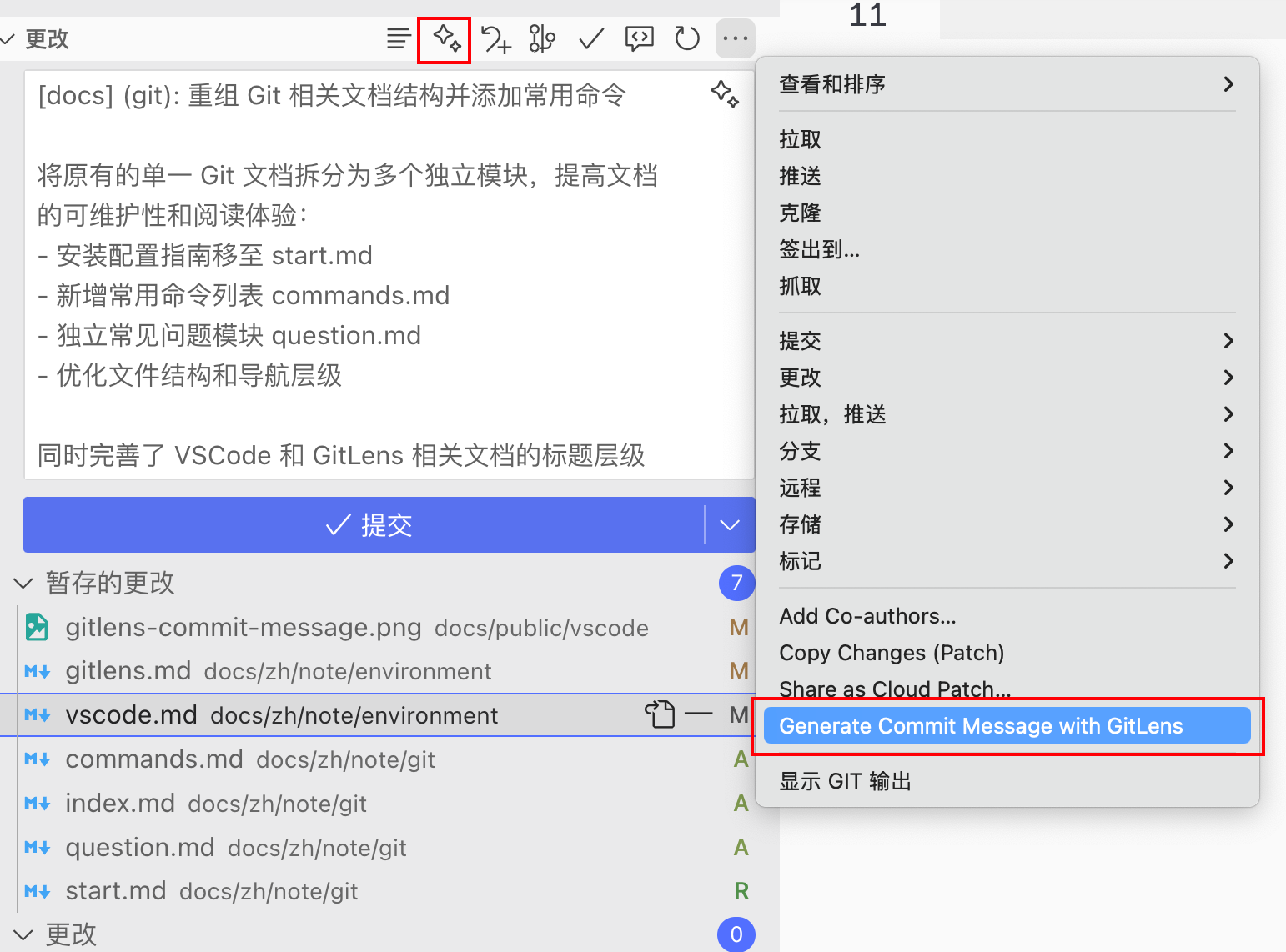
1. 完成代码修改后,在 GitLens 面板中选择 "Generate Commit Message with GitLens"
2. AI 将根据自定义模板生成符合规范的提交消息
3. 根据需要微调生成的消息内容
4. 提交代码
## 使用 VSCode 打开
为了能够在终端中使用 `code` 命令来快速打开文件和文件夹,你可以安装 `code` 命令行工具:
打开 VSCode,按 `Cmd + Shift + P`,然后输入 `Shell Command: Install 'code' command in PATH`,选择该选项并执行。
安装完成后,你可以在终端中运行 code 命令。例如:
```sh [sh]
# 打开当前目录
code .
```
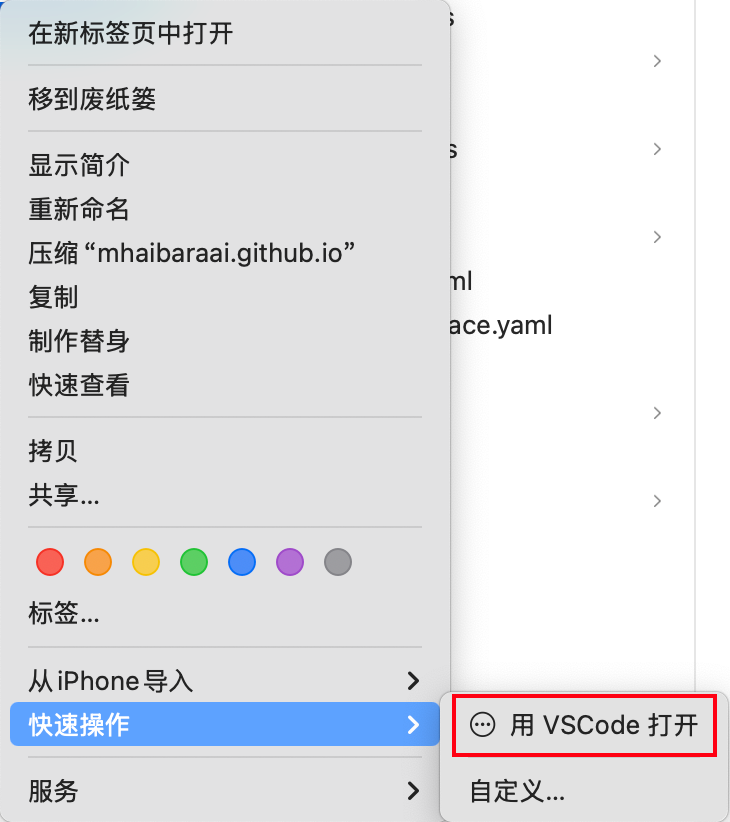
## 添加 "使用 VSCode 打开" 的右键菜单选项
1. 打开 Automator 应用程序
- 你可以通过 Spotlight 搜索 `Automator` 打开它
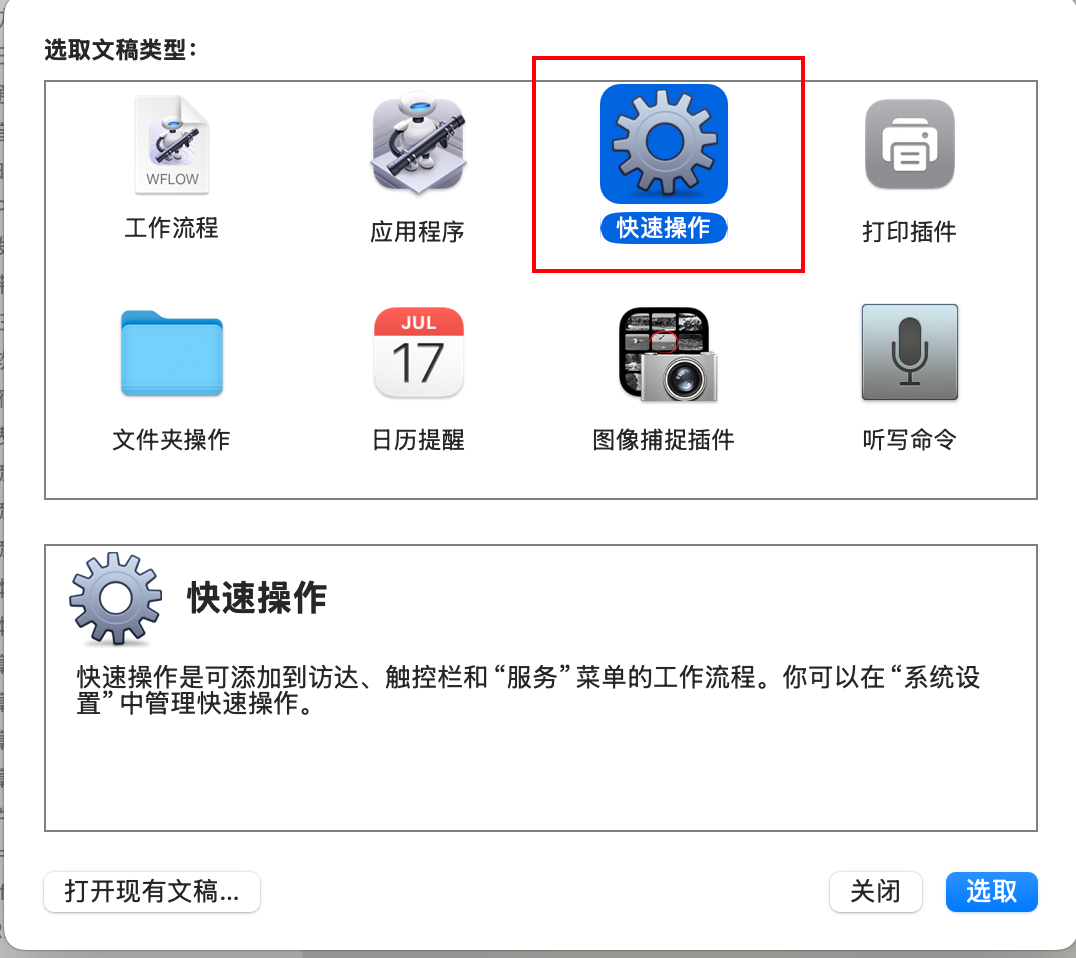
2. 选择 "快速操作" 类型
3. 配置服务
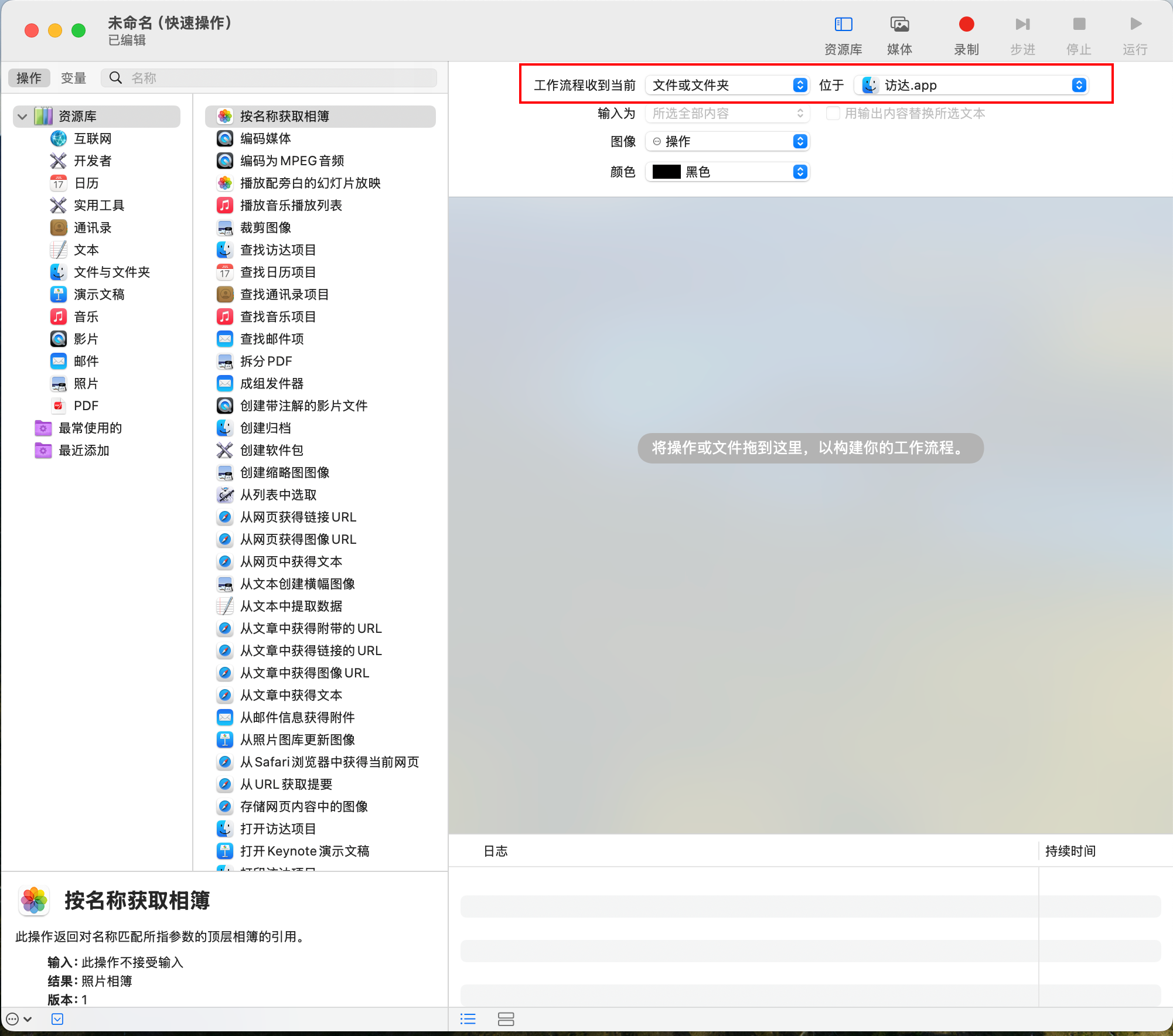
- 在窗口顶部,将 “工作流程收到当前” 更改为 “文件或文件夹”
- 将 “位于” 设置为 “访达.app”
4. 添加 VSCode 动作:
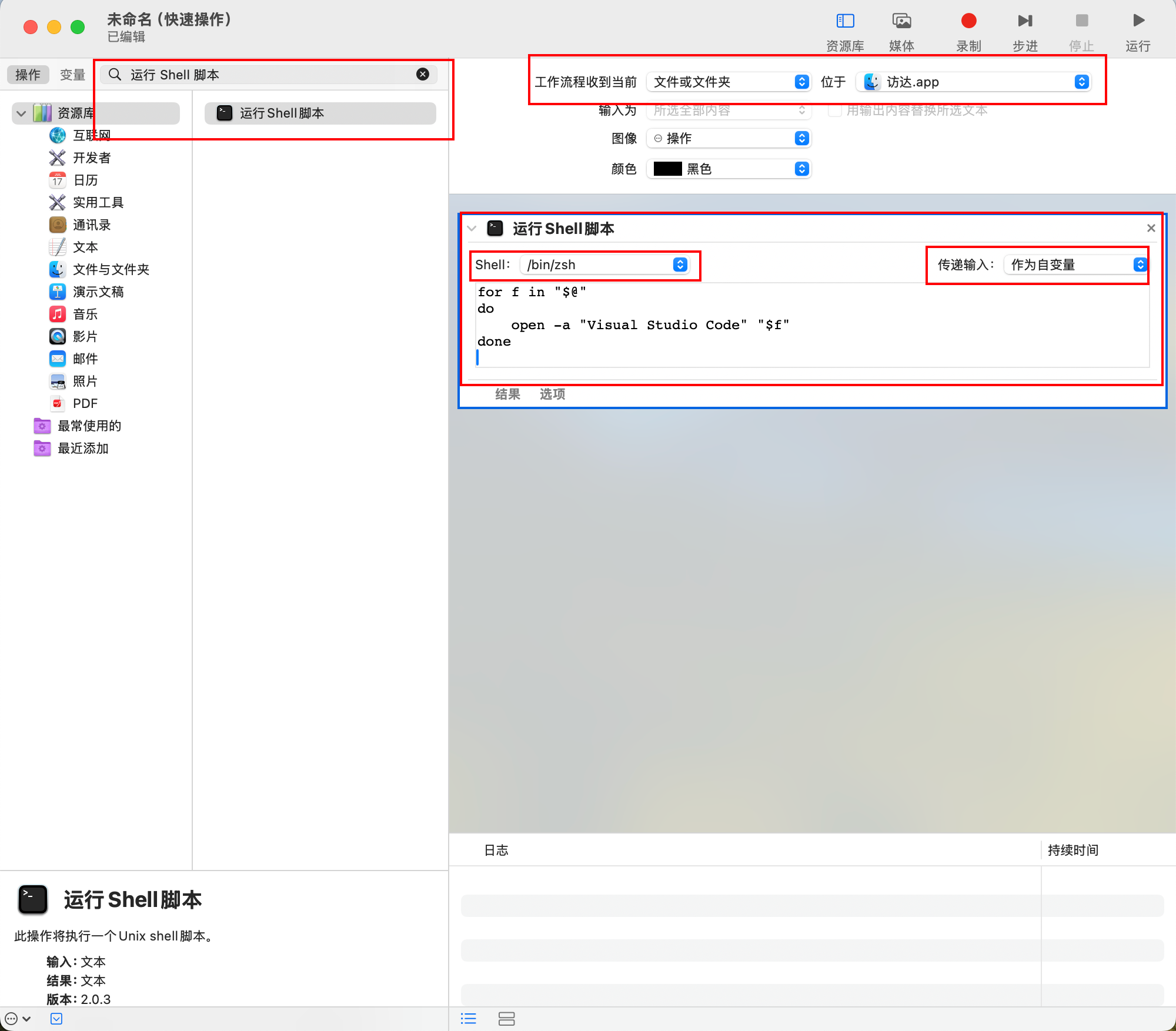
- 在左侧搜索框中输入 `运行 Shell 脚本`,将其拖动到右侧的工作区
- 在 `Shell` 下拉菜单中选择 `/bin/zsh`
- 在 `传递输入` 下拉菜单中选择 `作为自变量`
- 在脚本框中输入以下内容:```sh [sh]
for f in "$@"
do
open -a "Visual Studio Code" "$f"
done
```
5. 保存服务
- 点击左上角的保存按钮,输入服务名称,例如 `使用 VSCode 打开`
6. 使用服务
- 在 Finder 中,右键单击文件或文件夹,选择 `服务` -> `使用 VSCode 打开`
## Sitemap
See the full [sitemap](https://mhaibaraai.cn/sitemap.md) for all pages.